Managing your streaming experience can feel overwhelming, especially with various devices available today. However, it becomes effortless when you understand your device type and choose the right method for control. Whether you prefer a hardware option or an app-based solution, optimizing your setup for Canadian streaming services in 2026 and beyond is crucial.
In my journey, I transitioned from juggling multiple physical remotes to a streamlined system. This system combines a universal remote with a smartphone app, making it easier to manage my viewing experience. By understanding the different types of remotes available—infrared, Bluetooth, and RF—I matched them to my specific IPTV box model, such as MAG or BuzzTV.
My guide will share firsthand experiences, troubleshooting tips, and the best practices for seamless management. By the end, you will gain the confidence to transform your remote management from a source of frustration into a reliable part of your daily streaming routine.
Key Takeaways
- Identify your remote type for optimal setup.
- Combine hardware and app solutions for ease of use.
- Understand the specific models compatible with your service.
- Learn troubleshooting tips from real experiences.
- Transform your streaming routine into a seamless experience.
Understanding IPTV Remote Control: The Basics
Navigating the world of streaming devices can be challenging, especially with the rapid evolution of technology. One crucial component in this setup is the IPTV remote control. This device serves as the primary interface that sends commands to your IPTV set-top box. It allows you to navigate channels, adjust volume, and access subscription content without needing to touch the box itself.
In 2026, the landscape of IPTV remotes has expanded significantly. Traditional infrared clickers are still common, but new technologies have emerged. Today, you can find Bluetooth-enabled remotes that support voice search and RF remotes that work through walls and cabinets. Additionally, sophisticated smartphone apps can replicate every function of a physical remote.
Here are the main types of IPTV remotes available:
- Infrared (IR) Remotes: These are the most common and affordable type. They require a direct line-of-sight to the IPTV box sensor. I learned to arrange my living room setup to ensure no obstructions block the signal path.
- Bluetooth Remotes: My preferred choice, these eliminate the line-of-sight requirement and typically offer faster response times. Pairing is simple and usually takes less than thirty seconds through the box settings menu.
- RF Remotes: These use radio frequency signals, allowing them to penetrate walls and cabinets. This feature is ideal for hidden IPTV box installations, keeping my living space neat and organized.
Modern remotes increasingly feature hybrid connectivity. They combine IR for TV power and volume functions with Bluetooth for box navigation. This design is particularly practical for reducing clutter on my coffee table.
Understanding these differences directly impacts how easily you can manage your streaming. Choosing the wrong type can lead to signal problems and pairing failures, which I experienced before learning these distinctions.
Why I Choose a Virtual IPTV Remote Control App
In today’s fast-paced digital world, managing your streaming services can often feel like a daunting task. I found that switching to a virtual IPTV remote control app has transformed my viewing experience significantly. This change not only simplified my interactions with various streaming platforms but also eliminated many frustrations associated with traditional hardware remotes.
One of the primary reasons I made the switch was the constant search for my physical remote. I often found myself digging between sofa cushions or discovering dead batteries just when a live sports event was about to start. With a smartphone app, I never worry about losing my remote again. My phone is always charged and within reach, turning it into a universal remote that I can rely on.
The touchpad navigation feature is a revelation. Instead of clunky directional buttons, I can now use smooth swipe gestures. This makes browsing my IPTV subscription channel list feel as natural as scrolling through social media. Additionally, the full keyboard functionality allows me to type search queries, enter login credentials, and paste long playlist URLs in seconds. This is a significant improvement over the minutes I used to spend pecking at an on-screen keyboard.
Voice command integration is another game-changer. I can simply say phrases like “football HD” or “news channels,” and my IPTV box tunes into the correct content instantly. This feature is especially useful when I’m busy cooking or my hands are occupied. In Canada, where many IPTV subscription providers offer extensive channel lists, the app’s search and filtering capabilities dramatically reduce the time I spend navigating compared to traditional methods.
Moreover, virtual remote apps offer screen-off gesture controls. This allows me to pause playback and darken my phone display while the audio continues. It’s perfect for music channels and background listening throughout my home. The combination of always-available control, faster text input, voice search, and customizable layouts makes the virtual IPTV remote app my go-to choice for daily streaming management.
Identifying Your IPTV Remote Type for Seamless Setup
Determining the type of remote you have is essential for a smooth streaming experience. Understanding whether your device uses infrared, Bluetooth, or radio frequency can significantly impact your setup process. I learned this firsthand when I began organizing my streaming environment.
First, let’s explore the differences between the main types of remotes:
Infrared (IR), Bluetooth, and RF Remote Differences
- Infrared (IR) Remotes: These remotes require a clear line-of-sight to the IPTV box. I confirmed my remote was IR by noticing it wouldn’t function if I pointed it away or placed an object in front of the box sensor.
- Bluetooth Remotes: Identifiable by a pairing button or LED light that flashes during connection. I verified this by checking my IPTV box settings for a Bluetooth devices section listing paired peripherals.
- RF Remotes: These come with a small USB dongle that plugs into the IPTV box. This dongle acts as a receiver for radio frequency signals, allowing the remote to work without a direct line-of-sight.
How I Checked My IPTV Remote Type and Compatibility
To check compatibility, I consulted my IPTV box documentation and the manufacturer’s website. I found lists of supported remote models and connection methods specific to my device. For Canadian users with models like MAG 254, BuzzTV XPL, or Formuler Z10, the remote type is often printed on the back label or listed in the box specifications online.
Identifying your remote type before attempting any pairing or troubleshooting saves time and frustration. I once tried Bluetooth pairing procedures on an IR-only remote, which led to confusion. Now, I perform this identification step immediately whenever I set up a new box or replace an old remote.
| Remote Type | Line-of-Sight Required | Connection Method |
|---|---|---|
| Infrared (IR) | Yes | Direct line to box |
| Bluetooth | No | Wireless pairing |
| RF | No | USB dongle receiver |
Step-by-Step: Connecting My IPTV Remote Control to the IPTV Box
Establishing a connection between your remote and IPTV box is essential for seamless viewing. I have developed a straightforward process that ensures my remote pairs successfully with my box every time. Here’s how I do it.
Preparing Your IPTV Remote and Box
First, I begin the connection process by inserting fresh AAA or AA batteries into my IPTV remote control. I always check the polarity markings inside the battery compartment to avoid the common mistake of reversed installation that causes unresponsive remotes.
Next, I position myself within three to five feet of the IPTV box. I ensure both the box and television are powered on and functioning properly before initiating any pairing sequence.
For infrared remotes, I confirm there are no obstacles between the remote emitter and the box receiver. I once spent thirty minutes troubleshooting a remote that was simply blocked by a picture frame on my entertainment unit!
Detailed Pairing Procedure for Different Remote Types
For Bluetooth remotes, I navigate to the settings menu on my IPTV box and enable Bluetooth discovery mode. Then, I hold the designated pairing button on the remote until the LED indicator flashes rapidly to signal it is ready to connect.
For universal remote control setup, I locate my television brand code from the remote manual or an online database. I enter the three or four-digit sequence using the number buttons until the LED confirms successful programming.
If codes are unavailable, I use the auto-search method. I press the power or channel up button repeatedly while the remote cycles through all available codes. When my television turns off, I immediately press OK or Enter to lock in the correct code.
Testing every function is essential after pairing. I check power, volume up and down, channel switching, and input source selection. I have encountered remotes that control volume but not channels, requiring a different code to enable all features.
For RF remotes with USB dongles, the connection is typically plug-and-play. The IPTV box recognizes the receiver automatically within seconds of insertion, making this the simplest remote type to set up in my experience.
Using a Smartphone as IPTV Remote Control: How I Did It
Transforming your smartphone into a powerful remote can enhance your streaming experience significantly. I discovered that using my phone as a remote control not only simplified my interactions with various services but also eliminated the frustrations of traditional hardware remotes.
My journey began with downloading the Infomir MAGic Remote app for my MAG 254 box. I found it in the official app store and installed it in under a minute, thanks to the automatic local-network permission prompts.
Here are some recommended apps based on the type of IPTV box:
- Google Home: Ideal for Android TV and Google TV devices.
- CetusPlay: Excellent touchpad and keyboard features for various Android boxes.
- ZaZa Remote: Best for older boxes that use infrared signals and require a phone with a built-in IR blaster.
To set up and pair my phone with the IPTV box, I followed these steps:
- Connected both my smartphone and IPTV box to the same Wi-Fi network, preferably on the 5 GHz band for minimal latency.
- Launched the app and used the automatic device discovery feature, which quickly found my IPTV box on the network.
- Entered the code displayed on my TV screen into the app to complete the pairing process.
Once paired, I found the keyboard feature to be the most valuable function. It allowed me to type search terms, login credentials, and playlist URLs at normal typing speed. This was a significant improvement over the slow hunt-and-peck method with traditional remotes.
The touchpad mode transformed my phone screen into a laptop-style trackpad. This made navigating through my IPTV subscription menus feel fluid and intuitive. I also discovered that voice command functionality was a game-changer. By tapping the microphone icon and speaking naturally, I could switch between channels effortlessly, even when my hands were busy.
| App | Device Compatibility | Key Features |
|---|---|---|
| Infomir MAGic Remote | MAG devices | Quick setup, local network permissions |
| Google Home | Android TV/Google TV | Voice commands, smart home integration |
| CetusPlay | Various Android boxes | Touchpad, keyboard features |
| ZaZa Remote | IR boxes | Built-in IR blaster support |
In conclusion, using a smartphone as a remote control has streamlined my streaming experience. With the right app, I can enjoy seamless navigation and enhanced functionality, making my viewing sessions more enjoyable.
Managing Batteries and Power for My IPTV Remote Control
Ensuring my streaming devices are always ready to go starts with effective battery management. Proper care for the batteries in my remotes is essential for a smooth viewing experience. After experimenting with various battery types, I’ve developed a strategy that works best for me.
Choosing the Right Battery Type
I standardize on high-quality alkaline AAA batteries for all my remotes. After testing rechargeable options, I found that premium alkalines provide the most consistent voltage output. They typically last between six to twelve months under normal daily use.
When selecting batteries, I consider the specific remote model. For instance, my MAG 254 replacement remote uses AAA cells, while my BuzzTV XR4000 universal remote requires AA batteries. I keep both types stocked in my entertainment cabinet to avoid interruptions.
Extending Battery Life and Monitoring Performance
Monitoring battery performance is crucial. I pay attention to response delays; when button presses require multiple attempts, I know it’s time for a replacement. I also inspect battery contacts every three months. Using a flashlight, I check for corrosion or oxidation and clean any residue with a cotton swab and isopropyl alcohol.
To extend battery life, I remove batteries from remotes I use infrequently. For example, my backup IR remote for the secondary IPTV box in the bedroom stays without batteries to prevent slow discharge. Additionally, I’ve noticed that Bluetooth remotes drain faster than infrared models due to their constant wireless connection. When using the smartphone app, I disable Bluetooth on my IPTV box to preserve the physical remote’s battery.
Lastly, using a virtual remote app on my phone eliminates battery concerns for primary streaming control. Since my phone is charged daily, I never worry about searching for replacements during critical viewing moments like live sports finals or season premieres.
Customizing Remote Control Settings and Features for Efficiency
Customizing the settings of my streaming device has made a world of difference in how I enjoy my favorite shows. It allows me to navigate my viewing experience seamlessly. By mapping buttons and utilizing universal remote features, I can enhance my efficiency.
To start, I identified which buttons I use most frequently. These include channel navigation, volume control, and the dedicated button that launches my subscription portal. By remapping less-used buttons to serve more practical functions, I improved my overall control. This adjustment is easily done through the remote settings menu.
Mapping Buttons and Using Universal Remote Features
For instance, I programmed my universal remote using its learning feature. I pointed my original TV remote at the universal remote to capture the infrared codes for power, volume, and input selection. This way, one device now controls both my television and IPTV box seamlessly.
Additionally, I mapped the colored buttons—red, green, yellow, and blue—to quick-launch specific functions within my IPTV subscription app. These functions include:
- Opening the electronic program guide
- Accessing favorites
- Toggling subtitles
- Switching audio tracks
This setup saves me from navigating through multiple menus each time I want to access these features.
Personalizing My Remote for My IPTV Subscription Needs
I also personalized the number buttons to serve as channel presets for my most-watched Canadian and international channels. This allows me to jump directly to news, sports, or entertainment content with a single press. I no longer have to scroll through hundreds of channels.
For my Formuler Z10 Pro Max box, I utilized the button mapping feature in the settings. This allowed me to assign dedicated app buttons to launch my IPTV service, a media player, and YouTube. This customization creates a control surface that matches my actual viewing habits.
Moreover, universal remote features like macro programming let me create sequences. For example, pressing one button can turn on my TV, switch to the correct HDMI input, and launch my IPTV app. This three-step process, which I previously performed manually, is now completed with a single press.
In conclusion, personalizing my IPTV remote control transforms it from a generic input device into a tailored tool. It anticipates my preferences and reduces the friction between wanting to watch something and actually watching it.
| Universal Remote Model | Price | Key Features |
|---|---|---|
| BuzzTV XR4000 OEM Universal IR Remote Control | $16.99 | Programmable buttons, IR learning capabilities |
| RockTek RC45 Bluetooth Voice Remote | $39.99 | Bluetooth connectivity, voice control |
| Essential TV Remote URC3610 | Varies | Works with any TV brand, learning functionality |
How I Troubleshoot Common IPTV Remote Control Issues
Troubleshooting issues with your streaming setup can be a daunting task. However, I have learned effective methods to resolve common problems with my remote. Here, I share my experiences and solutions for overcoming signal issues, connectivity problems, and pairing failures.
Signal problems often arise unexpectedly. For instance, I faced intermittent responses from my infrared remote. I discovered that a decorative vase was partially blocking the line-of-sight path between my seating position and the IPTV box sensor. Moving the vase immediately restored full functionality.
Bluetooth remotes can also experience interference. I found that my microwave oven and certain Wi-Fi routers operating on the 2.4 GHz band caused periodic disconnections. Switching my router to channel 6 or 11 significantly reduced this interference pattern.
Slow feedback on my smartphone remote app indicated that both my phone and IPTV box were on different Wi-Fi frequencies. To fix this, I ensured both devices were connected to the 5 GHz band and disabled battery-saver mode on my phone, which was throttling the app’s background connection.
When it comes to pairing failures, I have a systematic approach. First, I remove the remote from the IPTV box’s Bluetooth devices list. Then, I power-cycle the box by unplugging it for thirty seconds. Finally, I re-initiate the pairing sequence with fresh batteries installed in the remote.
Once, my universal remote lost its programming after a power outage. I quickly retrieved the original TV brand code from my saved notes and re-entered it manually. This restored all functions in under a minute without needing to repeat the auto-search process.
If the virtual remote app fails to locate my IPTV box on the network, I check my router settings to ensure that multicast and UPnP are enabled. Assigning a static IP address to the box keeps its network location consistent across reboots.
To prevent the frustrating situation where my phone remote disconnects every time my phone screen locks or the app is minimized, I enable “Launch at startup” and “Background service” in the remote app settings.
Lastly, keeping a basic IR remote as a backup has saved me multiple times. When network issues prevent the smartphone app from connecting, this reliable fallback requires no pairing or configuration, ensuring I can always control my viewing experience.
Compatibility Considerations When Using IPTV Remote Controls
When it comes to using remote controls with my streaming devices, compatibility is a key factor. Ensuring that my remote works seamlessly with my IPTV box and television can make all the difference in my viewing experience. I’ve learned that addressing compatibility concerns is essential to avoid frustration and maximize functionality.
To start, checking the compatibility of my IPTV box is crucial. I locate the exact model number on the bottom label of my device, such as MAG 254, BuzzTV XPL 3000, or Formuler Z10 Pro Max. I then cross-reference this with the remote manufacturer’s compatibility list before making any purchase. This step saves me from potential issues down the line.
Checking IPTV Box and TV Compatibility
Verifying television compatibility is just as important. I consult my TV user manual or the manufacturer’s website to confirm it supports external remote control input via HDMI-CEC. This feature allows my IPTV remote to control basic TV functions like power and volume through the HDMI connection, streamlining my setup.
Ensuring Safe Third-Party Remote Usage
When considering third-party remotes, I always look for FCC and CE certification markings on the product listing and packaging. These markings indicate that the device has passed safety and interference testing required for use in Canada. I approach third-party remote usage cautiously, testing basic functions like navigation and selection first.
Once I confirm basic functionality, I gradually verify advanced features such as voice control and shortcut buttons. If I notice any erratic behavior or overheating, I discontinue use immediately. I also avoid uncertified remotes lacking proper documentation or those priced significantly below the market average. For instance, I once purchased a $3.99 no-name replacement that drained batteries quickly and interfered with my other devices.
For universal remote compatibility, I consult the remote packaging or an online database to confirm my specific TV brand and IPTV box model are listed. This ensures I avoid the frustration of returns and exchanges. Additionally, I check voltage specifications to ensure the remote operates within the same range as the original. This precaution prevents potential damage to the IPTV box’s infrared receiver or Bluetooth module from incompatible signal strengths.
Exploring Advanced Features on Modern IPTV Remote Controls
In 2026, the capabilities of remote devices have reached new heights, providing enhanced functionalities for seamless control. The advanced features of modern remotes not only simplify my streaming experience but also enhance the overall enjoyment of my favorite shows and channels.
One of the standout features is voice control. With my RockTek RC45 Bluetooth Voice Remote, I can easily filter my IPTV subscription channel list. By simply pressing the microphone button and saying phrases like “live sports” or “Canadian news,” I can access content without the hassle of typing. This has transformed my search experience, making it quicker and more efficient.
Gesture controls are another remarkable advancement. The Rock&Rown MX3 Pro air mouse remote allows me to wave the device through the air to move an on-screen cursor. This precision is far superior to traditional directional buttons, especially when navigating complex menus or web-based content. Additionally, I can swipe left or right on the touchpad to change channels or swipe up to access the electronic program guide.
Another feature I appreciate is the backlit keys on my premium remote. These keys automatically illuminate when I pick up the remote in a dark room, solving the problem of pressing the wrong buttons during evening viewing sessions. This thoughtful design ensures I can enjoy my shows without needing to turn on the lights.
Shortcut buttons are also a game-changer. I can program these buttons through the remote settings to perform complex sequences with a single press. For instance, one button now launches my IPTV app, navigates to the sports category, and opens the live events section. This customization saves me time and makes my viewing experience much smoother.
Moreover, the wireless keyboard integrated into air mouse remotes makes entering search terms, URLs, and login credentials as fast as typing on a laptop. This feature is essential when configuring new IPTV subscription portals or searching across multiple content sources.
In summary, these advanced features collectively reduce my interaction time with the remote control interface. This allows me to spend more time enjoying content and less time navigating to it.
| Remote Model | Price | Key Features |
|---|---|---|
| RockTek RC45 Bluetooth Voice Remote | $39.99 | Voice control, air mouse functionality, IR learning, backlit keys |
| Rock&Rown MX3 Pro | $16.99 | Wireless keyboard, gesture control, compatible with Android TV |
Optimizing My Living Room Setup for IPTV Remote Control Use
To fully enjoy my streaming services, I realized that optimizing my living room layout is essential. The placement of my devices and furniture can greatly affect how well my remote signals reach the IPTV box. Here are the strategies I employed to enhance my setup.
Placement for Best Signal Reception
Initially, I placed my IPTV box behind the television, which blocked the infrared signals due to the wall and TV chassis. This setup caused frustrating delays and missed commands. I relocated the box to a visible shelf on my entertainment unit. This change provided an unobstructed line-of-sight from every seating position, allowing my remote to function flawlessly.
Overcoming Wall and Obstruction Challenges
Switching from the included infrared remote to an RF remote control with a USB dongle solved my wall penetration problem. RF remotes transmit radio frequency signals that easily pass through my entertainment cabinet doors and the wall separating my living room from the network closet where I relocated the IPTV box.
For those who must use infrared remotes, I installed an IR extender cable. This small receiver sits visibly on my TV stand and relays signals via a thin wire to the IPTV box hidden behind the wall-mounted television. This setup preserves my clean aesthetic while maintaining full remote functionality.
Positioning the IPTV box sensor at the front edge of my media shelf increased the effective angle at which my remote signals can reach it from various points in the room. I also addressed Bluetooth range issues caused by a wall between my seating area and the IPTV box by installing the box higher on the wall. This reduced the amount of building material the signal needed to traverse, restoring reliable connectivity.
With smartphone-based remote control, the wall and obstruction challenges disappear entirely. The connection travels over Wi-Fi through my home network, allowing me to control my IPTV box from any room, regardless of physical barriers. After making these placement changes, I tested signal reception from every seat in my living room. This revealed dead zones I would have never discovered otherwise, and I now make this testing part of my standard setup routine.
Where I Find Reliable Replacement IPTV Remote Controls in Canada
Finding a reliable replacement for your streaming device’s remote can be crucial for maintaining a seamless viewing experience. Over the years, I have identified several trusted sources for replacement remotes that cater specifically to Canadian users.
My primary source for replacement IPTV remote controls in Canada is Amazon.ca. Here, I can compare dozens of options for my specific box model. The platform allows me to read verified purchase reviews from other Canadian users and enjoy quick delivery through Prime shipping to my Ontario address.
Authorized Retailers and Online Marketplaces
In addition to Amazon, I locate authorized retailers by checking the manufacturer website for official distributor lists. For instance:
- Infomir lists authorized MAG remote sellers.
- BuzzTV directs customers to their Amazon storefront.
- Formuler maintains a “where-to-buy” page with Canadian vendors.
Choosing Genuine Versus Third-Party Remotes
When it comes to selecting a remote, distinguishing genuine remotes from third-party alternatives is essential. I examine product photos for manufacturer logos and ensure that the model number matches my box exactly. I also verify that the listing explicitly states “Original” or “OEM” instead of vague terms like “compatible” or “replacement for.”
For example, I purchased a genuine Infomir MAG Original Remote Control for $12.99. It felt identical in weight, button responsiveness, and build quality to the remote that came with my box. In contrast, a $6.41 third-party replacement had mushy buttons and an infrared emitter half as powerful.
For universal remote controls, I prefer the BuzzTV XR4000 OEM model at $16.99. This remote offers IR learning capabilities, allowing me to consolidate control of my TV, soundbar, and IPTV box into one device without sacrificing any native functions.
I have also found reliable replacement remotes at Canada Computers and Best Buy locations. However, the in-store selection is typically limited to universal models rather than device-specific IPTV remotes.
Ultimately, when choosing between genuine and third-party remotes, I weigh the price difference against the hassle of potential returns. A genuine remote at $12.99 that works immediately is often cheaper in time and frustration than a $6.41 third-party option that requires troubleshooting or replacement.
| Remote Type | Price Range | Notes |
|---|---|---|
| Infomir MAG Original Remote Control | $10.99 – $12.99 | Genuine remote, high build quality |
| BuzzTV XR4000 OEM Universal Remote | $16.99 | IR learning capabilities |
| Third-Party Remotes | $6.41 – $19.99 | Variable quality, check reviews |
| Universal Remote URC3610 | $16.99 | Works with any TV brand |
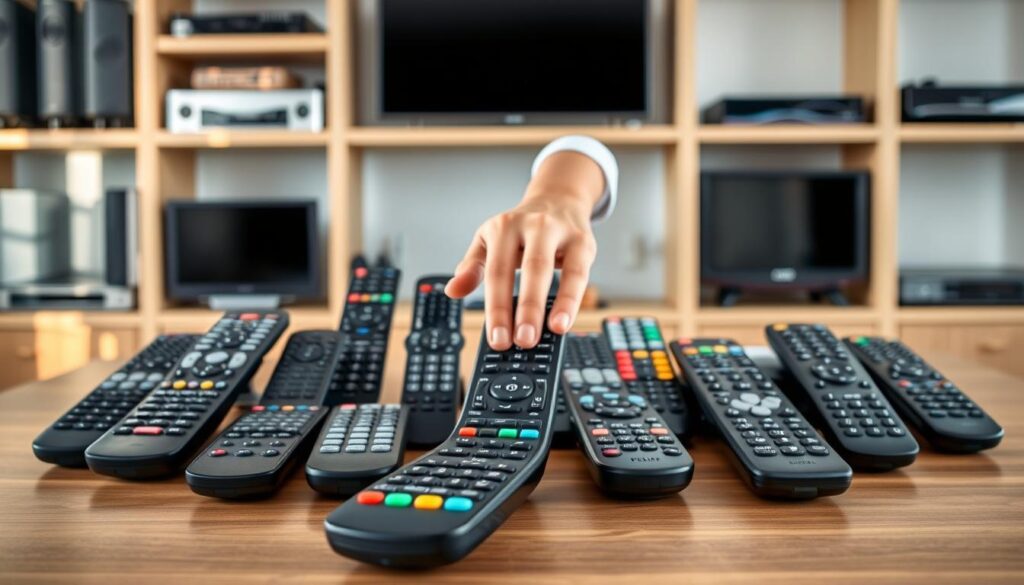
Enhancing My Streaming Experience with IPTV Remote Control Apps
Enhancing my streaming experience has become simpler thanks to innovative apps that serve as remote controls. These applications provide a range of features that significantly improve how I interact with my favorite content.
One of the standout features is the keyboard functionality. This has fundamentally changed how I engage with my streaming service. Instead of slowly typing on an on-screen keyboard using directional arrows, I can type search queries at full speed. What once took two minutes now takes only ten seconds!
Using Keyboard and Touchpad Features
The touchpad mode transforms my phone screen into a precision navigation surface. I can swipe and tap to browse my IPTV subscription channel list with the same fluidity I expect from native smartphone applications. This feature makes navigating through content enjoyable and efficient.
Voice Commands and Smart Home Integration
Voice commands have become my default search method. I regularly speak phrases like “hockey highlights,” “evening news,” or “cooking channels” to instantly filter content without navigating through category menus. This feature has streamlined my viewing experience.
Additionally, I’ve integrated my IPTV remote control app with my smart home ecosystem. For example, saying “movie night” to my Google Home triggers the lights to dim, the TV to power on, and my IPTV app to launch to the video-on-demand section. This level of integration makes my viewing experience even more enjoyable.
Another practical feature is the screen-off gesture. This allows me to darken my phone display while audio continues playing. I use this daily for music channels and news broadcasts when I want background audio without the distraction of a glowing screen.
Moreover, the hardware volume buttons on my phone control my television volume through the app. This means I can adjust audio levels without unlocking my phone or opening the app interface. These app-based enhancements effectively turn my smartphone into a universal remote that surpasses any physical remote in functionality.
Now, I reach for my phone before any hardware remote when sitting down to stream. The convenience and efficiency of these apps have truly transformed my streaming experience.
How I Manage Multiple IPTV Devices with One Remote Control
Coordinating multiple streaming devices in my home has become a breeze with the right remote control setup. Managing my three IPTV devices—a MAG 254 in the living room, a BuzzTV XPL 3000 in the bedroom, and a Formuler Z10 Pro Max in the home office—was challenging until I invested in a quality universal remote.
This universal remote features dedicated device selection buttons, which made a significant difference. I programmed the STB button for my primary IPTV box, the TV button for my television, and the AUX button for my soundbar. Using the learning function, I captured any missing commands from the original remotes.
Universal Remote Setup Tips
Setting up my universal remote was straightforward. I began by following the manufacturer’s instructions to program each button correctly. For example, when I press the STB button, it allows me to control my IPTV box effortlessly. Then, pressing the TV button lets me adjust the volume or change inputs without needing to switch remotes.
The remote remembers which device each button controls based on the last selection. This means I can easily switch between devices without confusion. Additionally, I programmed macro sequences that switch my television to the correct HDMI input and activate the corresponding IPTV box with a single button press. This setup eliminates the hassle of juggling multiple remotes or navigating through input menus.
Device Switching and Multi-Device Control
For my smartphone remote app, managing multiple devices is even simpler. The app displays all discovered IPTV boxes on my network. I simply tap the one I want to control, and the connection switches instantly without any re-pairing. This flexibility allows me to maintain control over any IPTV box in the house from any location.
I keep a dedicated universal remote in each room, programmed for that specific setup. Meanwhile, my phone serves as the master controller. The time invested in configuring one universal remote per room has eliminated the clutter of remotes that once covered my coffee tables. Now, I can enjoy my viewing experience without the confusion of grabbing the wrong remote for the wrong device.
Conclusion
Mastering the art of managing my streaming experience has been a journey filled with valuable lessons. I’ve refined my approach to three core strategies that simplify this process. First, I always identify my remote type before attempting any setup. This ensures I make informed decisions right from the start.
Next, I choose a hybrid approach that combines a universal remote for daily use with a smartphone app for advanced features and backup. This combination has proven to be the most effective for my needs. Lastly, optimizing my physical setup has eliminated signal obstacles, enhancing my overall experience.
The most impactful change was adopting a virtual remote app on my phone. This eliminated battery anxiety, lost remote searches, and slow text input while adding voice control and touchpad navigation that physical remotes cannot match.
For Canadian IPTV subscription users, compatible replacement remotes are readily available on Amazon.ca and through authorized retailers. This means no one needs to tolerate a malfunctioning or lost remote when affordable options ship quickly.
Lastly, the customization strategies I shared—button mapping, macro programming, and universal remote consolidation—transform the remote into a personalized tool. I encourage you to start with the identification step, as knowing whether you own an infrared, Bluetooth, or RF remote will guide your subsequent decisions. With a small investment of time in setup and configuration, effortless management is achievable for any Canadian streamer.