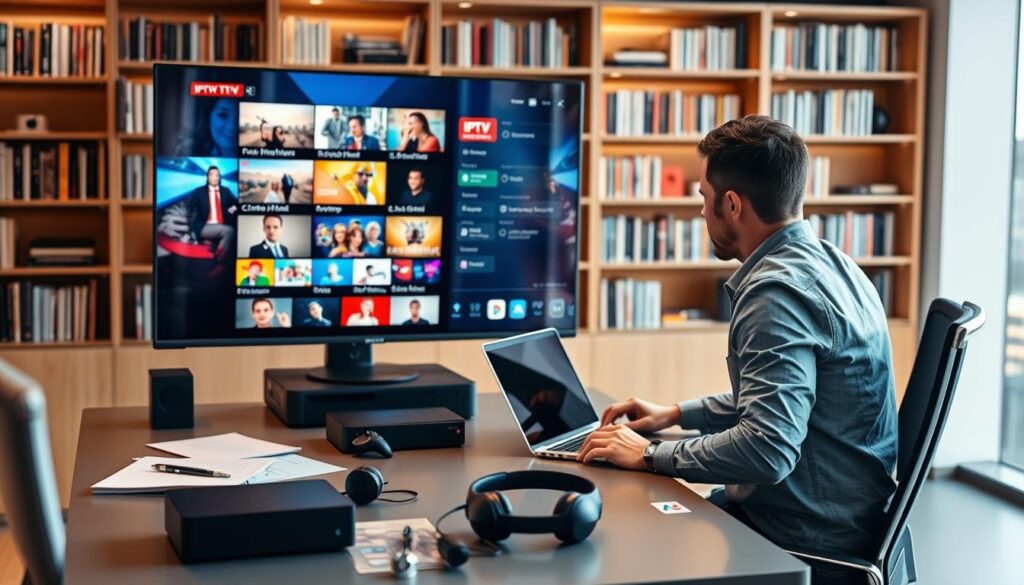
An editor IPTV is a specialized tool that revolutionizes my streaming experience. It allows me to import, organize, customize, and manage M3U playlists and channels seamlessly. This means I can take full control over my channel lineup, EPG data, and playback preferences.
With this solution, I eliminate clutter and maximize my viewing efficiency. By transforming raw M3U files into a structured media library, I can easily navigate through my favorite content. Whether I’m using SageIPTV for iOS or the M3U Playlist Editor for Android, the goal remains the same: to create a polished entertainment hub.
In this guide, I will share how I achieve the best results, from initial setup to advanced management practices. You’ll learn how to streamline your channel list and enhance your overall viewing experience.
Key Takeaways
- An editor IPTV serves as the command center for my streaming setup.
- This tool helps me manage bloated IPTV lists by hiding irrelevant channels.
- It’s more than a player; it’s a comprehensive management solution.
- Using this tool saves me time and reduces frustration in finding content.
- Consistent maintenance practices lead to optimal results.
Understanding Editor IPTV: What It Is and Why It Matters
A dedicated management platform, an editor IPTV enhances the streaming experience. This tool is not merely a player; it allows me to import M3U files, edit channel metadata, assign EPG data, and export customized playlists. Without it, I would be stuck with a static, unmanageable list of thousands of channels.
The core functions of an editor IPTV include playlist parsing, group management, channel enabling and disabling, and EPG mapping. These features empower me to build a tailored entertainment solution that fits my viewing preferences.
Defining Editor IPTV and Its Core Functions
I define an editor IPTV as a specialized software tool that parses M3U and M3U+ playlist files. It extracts channel information and provides a graphical interface for modifying every aspect of the channel lineup before playback. The core functions I depend on include:
- Importing playlists from URLs or local files.
- Detecting and displaying channel groups.
- Enabling or disabling individual channels based on my preferences.
This tool matters because raw IPTV playlists often contain thousands of unordered channels, dead links, and missing metadata. The editor gives me the power to filter out the noise and retain only high-quality, relevant content.
Common Use Cases and Who Benefits Most
Common use cases for an editor IPTV include:
- A Canadian household wanting to consolidate multiple IPTV subscriptions into one clean playlist.
- A sports fan creating a dedicated group for live sports channels.
- A family setting up parental controls to restrict certain categories.
The primary beneficiaries of this tool are IPTV enthusiasts who demand full control over their streaming experience. Additionally, cord-cutters looking for a cable-like channel guide will find it invaluable. Anyone frustrated by the limitations of basic IPTV player applications can also benefit significantly.
Management capabilities extend beyond simple editing. I use the editor to assign logos, correct channel names, and link EPG sources. This transforms a raw data feed into a polished entertainment platform.
Solutions like the open-source M3U Editor support advanced features such as Xtream API output and post-processing scripts. These features make them suitable for power users who want to integrate IPTV into home media servers.
Understanding the difference between a basic IPTV player and a full editor IPTV is crucial. Only the latter provides the management depth needed for a truly optimized setup.
How I Manage Playlists and Channels with Editor IPTV
Managing my playlists and channels is a straightforward process that begins with importing M3U files. I first import my M3U files through the editor’s interface. This can be done by pasting a URL, uploading a local file, or connecting via Xtream Codes API credentials. Immediately, I verify the playlist statistics to ensure all channels have loaded correctly.
Next, I organize my IPTV playlists into custom groups such as Sports, News, Entertainment, and Kids. By dragging and dropping channels into their appropriate categories, I replace the often chaotic default grouping with a structured approach. This organization allows me to quickly find what I want without scrolling through endless options.
I also make extensive use of the channel reordering feature. This enables me to place my most-watched channels at the top of each group. When I open the player on any device, my preferred content is always accessible right away.
To streamline my channel list, I rely on the enable/disable toggle for individual channels and entire categories. This allows me to hide foreign-language content, duplicate streams, or low-quality sources that I never intend to watch. As a result, my channel list becomes much more manageable.
Additionally, I customize playback preferences by assigning specific buffer settings and default audio tracks within the editor. This ensures that every stream launches with my preferred configuration, regardless of which IPTV player I use downstream.
After editing, I export my M3U playlist as a new file. This file can be shared across multiple devices, uploaded to cloud storage, or even generated as a shortened URL for easy access on any compatible app.
One of the great features of the editor is its ability to handle multiple playlists simultaneously. I can merge content from different sources into a single unified IPTV playlist while preserving the original files as backups. This flexibility is invaluable for managing diverse content.
Furthermore, I control streaming quality by using the editor to identify and remove channels with low bitrates or unstable connections. This keeps only the streams that deliver consistent, high-quality video on my Canadian internet connection.
Utilizing the group management features, I create nested categories and sub-groups. This is particularly useful when I have an extensive list of international channels that need granular organization.
Lastly, I regularly refresh my playlists through the editor’s update function. This captures new channels and removes dead links, maintaining a current and reliable channel lineup at all times.
The Role of Electronic Program Guide (EPG) Integration in Editor IPTV
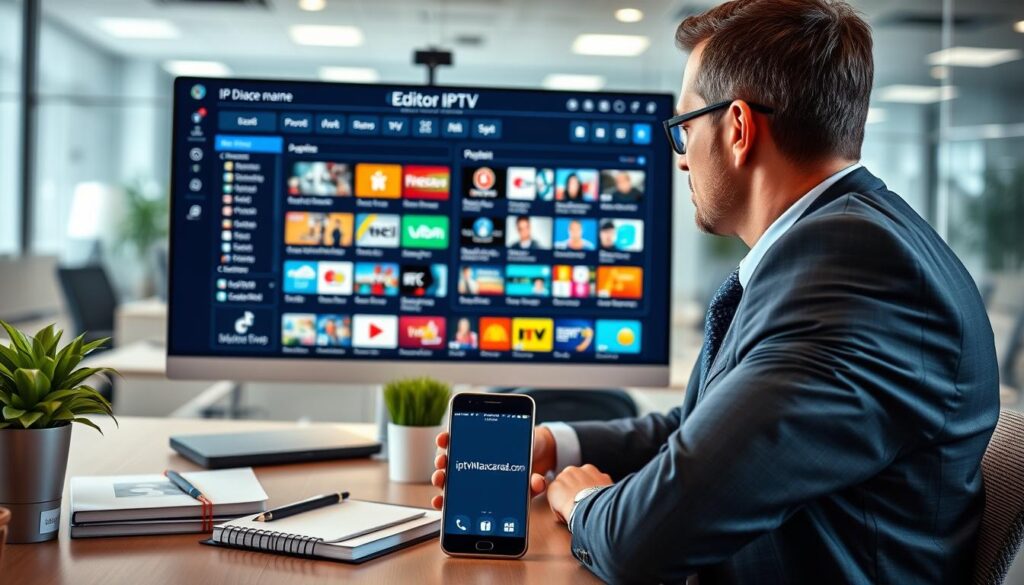
Integrating an Electronic Program Guide (EPG) is essential for transforming my channel list into a comprehensive television guide. This feature allows me to synchronize EPG data by linking reliable XMLTV sources or Schedules Direct to my playlists. As a result, I gain access to accurate program information for every channel.
This integration enables me to see what is currently playing and what is coming up next, much like a traditional cable or satellite TV guide. It enhances my viewing experience significantly.
Synchronizing EPG Data for Accurate Program Information
I utilize the editor’s matching algorithm to synchronize EPG information effectively. This algorithm employs fuzzy search techniques to automatically pair channel names in my playlist with the correct EPG entries. It works well, even when the names have slight variations in spelling or formatting.
For any mismatched EPG assignments, I take the time to manually fine-tune them. This ensures that every channel in my list displays the correct program data, which is crucial for channels with generic names or regional variations.
Enhancing Viewing Experience with EPG Features
One of the standout features of EPG integration is the ability to browse the program guide directly within the editor. I can view current and upcoming shows, read program descriptions, and plan my viewing schedule for the entire day.
Additionally, I rely on EPG data to make informed decisions about which channels to keep in my playlist. Channels lacking reliable program information are often less professionally maintained and more prone to downtime.
To ensure that program start and end times align with my local Canadian time zone, I use the EPG time synchronization feature. This prevents confusion when EPG sources use UTC or other time references.
Moreover, I appreciate that the editor caches EPG data locally. This allows me to browse program information even when my internet connection is temporarily unavailable or when the EPG source server is slow to respond.
Leveraging EPG integration creates a cable-like experience on my devices. I enjoy a grid view that displays multiple channels and their programming across different time slots in a familiar, easy-to-navigate format.
Finally, I configure automatic EPG refresh intervals within the editor. This keeps my program information current without requiring manual intervention, typically setting updates to occur daily during off-peak hours.
Privacy, Data Management, and Support Features I Rely On
Privacy and data management are top priorities for me when using streaming tools. I prioritize applications that give me full control over what information is collected and how my viewing habits are tracked. Choosing solutions with transparent privacy policies and local data storage options is essential.
For instance, SageIPTV’s privacy policy states that usage data may be collected but is not linked to user identity. However, some data may be used for tracking across apps and websites. This transparency is crucial for me as I want to ensure my data remains secure.
Additionally, I find that premium access benefits enhance my experience. These features often remove ads and include free email support with same-day response. This support is invaluable when I encounter issues, such as playlist parsing errors or EPG synchronization problems.
Protecting My Viewing Data and Maintaining Control
I protect my viewing data by selecting solutions that store my playlists and EPG information locally on my device. This approach prevents third parties from building a profile of my entertainment habits. By reviewing the data collection policies of each app I use, I maintain control over my privacy.
For example, I prefer self-hosted options like the Docker-based M3U Editor. This keeps all my information within my own network infrastructure, ensuring maximum security. I also leverage parental control features to restrict access to specific categories and channels, protecting younger viewers in my household.
Utilizing Customer Support and Premium Access Benefits
Customer support channels are crucial for resolving technical issues quickly. I have found that premium subscriptions offering same-day email support provide the most reliable assistance. This ensures I can address any problems without prolonged downtime.
Moreover, I exercise control over my content by using the editor’s built-in features to manage which channels and categories are visible. Regularly auditing my playlists helps me remove any sources that may have changed ownership or content policies. This proactive approach keeps my viewing experience smooth and enjoyable.
Finally, I appreciate the transparency of apps that clearly disclose their data practices. I prioritize tools that collect only the minimum usage data necessary for core functionality while offering opt-out options where possible. By doing so, I ensure that my viewing experience remains private and tailored to my preferences.
| Feature | Description |
|---|---|
| Local Data Storage | Stores playlists and EPG information on the device to enhance privacy. |
| Self-Hosted Options | Gives users control over their data with no external tracking. |
| Premium Support | Provides same-day assistance for technical issues. |
| Parental Controls | Restricts access to specific channels and categories for younger viewers. |
| Data Transparency | Apps disclose data practices and allow opt-out options. |
Best Devices and Applications for Using Editor IPTV Efficiently
To achieve the best results, I pair my streaming management tools with compatible players and applications across all my devices. This ensures a seamless viewing experience, whether I’m on my smartphone, tablet, or smart TV.
On iOS, I use SageIPTV for its robust playlist editing capabilities and Chromecast support. This app requires iOS 15.0 or later and enhances my mobile viewing with features like playback speed control and video zoom via gestures. I appreciate its ability to present channels in either grid or list view, making navigation easy.
For Android and Android TV, I rely on the M3U Playlist Editor. This app runs on Android 7.0+ and Amazon Fire TV Stick, adapting automatically to landscape mode. It offers two display modes: Classic and Modern, allowing me to choose based on my mood. The D-pad navigation is intuitive, making it effortless to browse channels.
For advanced setups, I deploy the open-source M3U Editor via Docker. This configuration allows me to manage playlists centrally and stream to any device on my network. It supports hardware acceleration through an external proxy setup, which is a significant advantage for smooth playback.
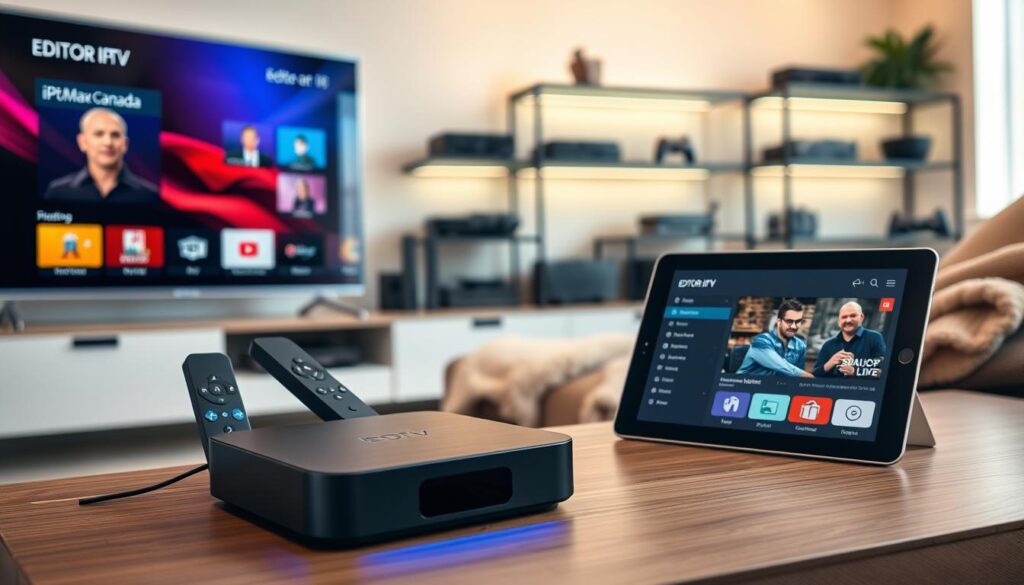
Recommended IPTV Players and Playlist Editors for Various Platforms
When selecting my applications, I ensure they are optimized for the specific device I’m using. This approach enhances usability and efficiency:
- I choose SageIPTV on my iPad and iPhone for its native iOS experience, which includes Chromecast streaming and interactive video zoom features.
- The M3U Playlist Editor on my Android TV and Amazon Fire TV Stick adapts to landscape mode and provides full D-pad navigation, making it easy to browse channels.
- I alternate between the Classic and Modern display modes depending on my viewing preferences, allowing for a customized experience.
- On my home server, I set up the open-source M3U Editor using Docker Compose, separating components for better performance.
- I import my edited M3U files into various IPTV player applications, ensuring that every player displays my channels as I arranged them in the editor.
Setting Up on Android, iOS, and Other Devices
To maximize my viewing experience, I configure each app to automatically refresh my playlists and EPG data in the background. This way, my channel list and program information are always up to date without manual intervention.
I regularly test new IPTV player applications by loading my exported M3U files. I keep a shortlist of players that handle my playlist format correctly and provide a smooth streaming experience. Additionally, I maintain separate playlist files optimized for different devices, ensuring a full-featured list for my home theater setup and a streamlined version for mobile use.
Overall, the right combination of devices and applications allows me to enjoy a tailored streaming experience. By carefully selecting my tools, I ensure that my viewing habits are both efficient and enjoyable.
My Best Practices for Optimal IPTV Playlist and Channel Management
Effective management of my IPTV playlists is essential for an enjoyable viewing experience. My best practices revolve around consistent maintenance, strategic channel ordering, and proactive stream quality monitoring.
I refresh my playlists weekly, remove dead channels immediately, and reorder my lineup based on seasonal viewing habits. This routine keeps my content fresh and engaging.
Maintaining Up-to-date Playlists and Channel Ordering
I establish a weekly maintenance routine where I open my IPTV management app, refresh all connected playlists to pull in new channels and remove dead links. After this, I review the updated channel list for any changes that need my attention.
Prioritizing channel ordering is also crucial. I place my most-watched entertainment and news channels at the top of each group. I adjust this ordering seasonally to account for sports seasons, holiday programming, and new content releases.
Maximizing Stream Quality and Content Availability
To maximize stream quality, I systematically test each channel’s video bitrate and connection stability. I disable or demote any streams that consistently buffer, drop resolution, or fail to load within a reasonable time.
I maintain multiple IPTV playlist versions, including a master list with all working channels, a curated daily-watch list with only my favorites, and a backup list that I can switch to immediately if my primary source experiences downtime.
Using the editor’s group management features, I create specialized categories for temporary events like major sports tournaments or awards shows. I populate these with relevant channels and then archive them once the event concludes.
Automation plays a key role in my management workflow. I configure the editor to run scheduled playlist updates and EPG refreshes during overnight hours. This way, I wake up each morning to a fully updated and accurate channel lineup.
Additionally, I leverage post-processing scripts available in advanced editors to automatically validate stream URLs, check for duplicate entries, and send me notifications when significant changes are detected in my playlists.
I regularly export my customized M3U playlist and store copies in cloud storage and on local devices. This ensures that my carefully curated channel lineup survives any hardware failures or application reinstalls.
Monitoring content availability is another critical aspect. I cross-reference my EPG program data with actual stream output and remove channels that consistently show incorrect programming or fail to deliver the advertised content.
Finally, I share my best practices with fellow Canadian IPTV users, emphasizing that the time invested in proper playlist management pays dividends in daily viewing convenience and long-term entertainment reliability.
Conclusion
In summary, my journey with a management tool for streaming has been transformative. I use an editor IPTV to take complete control of my streaming experience. The best results come from combining a powerful playlist editor with consistent management practices, accurate EPG integration, and the right device setup.
This tool bridges the gap between raw IPTV sources and a polished, personalized entertainment system. My methodology provides a blueprint for achieving the same results. By organizing playlists and ensuring accurate data synchronization, I have created a viewing environment that rivals traditional cable television.
For anyone serious about their streaming experience, this approach is essential. The combination of meticulous playlist organization and strategic device selection creates a seamless experience. I encourage you to start with a single playlist editor that matches your primary device and see the difference it makes.
As technology evolves, the role of the management tool will only grow in importance. The skills and practices outlined here are valuable long-term investments in digital entertainment. I am confident that anyone who follows this blueprint will achieve the same level of control, quality, and satisfaction in their viewing experience.